Wireless Drawdio circuit

                           Humans as elements of a circuit

Inspiration:

Humans are amazing antennas!

Humans as antennas is an established paradigm and the works on Body Coupled Communications(BCC) and Personal Area Netwok (PAN) from the MIT media lab are at the frontiers of innovation based on this concept. Their works get into the technicalities of such a communication such as protocols, circuit design, etc. The only down side being that, the technology is inaccessible to the common man. If you still want to experiment with it, we have something that could get you started.

Screenshot_2019-05-19_15-55-21

In this post, we connected the headphone jack’s mic wire to the human body and used it to transmit and receive signals through space – Wireless!

Why the headphone jack ?  Why not? Not only is it something that is readily accessible, it also does not require additional hardware.

Screenshot_2019-05-19_15-54-18

Demonstration:

In this post, we demonstrate this idea by turning the drawdio circuit made by Jay Silver using the 555 timer ‘wireless’ by using the human as an antenna.

In order to make the drawdio circuit (see diagram below) wireless, take out R5 and place your hand instead to complete the circuit.


Hook up a headphone jack to your computer and listen to the signals received on your mic. Your body will act as an antenna and you will be able to receive the signal on your computer. Make sure to adjust the gain of the microphone accordingly.

(see our post – Preparing a headphone jack for hacking to know how to set up your headphone jack in order for this to work)

Now if you are aware about common grounds then the above video might not seem as appealing because the drawdio in the above case by powered by an Arduino connected to the computer which is receiving the audio signal. The same concept does work with different grounds as well as we demonstrate in the following video where the drawdio is powered externally through an OTG cable.

If you would like to transmit the drawdio output in the RF range instead, one can hook up the output of the drawdio to a crystal oscillator and touch the output wire of the crystal oscillator instead.  In this video, a 32 MHz crystal oscillator is used and a FM radio app tuned at 96MHz is used to pick up the drawdio signal. This would be another way to demonstrate the idea of using the human body as an antenna.*

Instead of the drawdio, if you would like to transmit serial data from the USB port wireless, we can play the same game. Just place your hand on the TX pin of the USB-TTL and listen on the mic of the headphone.


What can you do with this ?


There are obvious limitations of using a headphone jack for BCC rather than something more dedicated as explored by the folks at the MIT media lab,  this post is an exploration on how one can intuitively achieve this using the headphone jack.


*There is a great chance that many of you might have already tried this out in your car at some point.

** More explorations on the drawdio circuit click here

** More explorations on the headphone jack click here.


The ultimate guide to using LEDs with headphone jack

drawing112

Lighting up an LED using the headphone jack is probably one of most easiest tasks. Take the mic of the TRRS pin ( or left in a TRS ) and connect it to the shorter end of the LED. Take the ground and connect it to the longer end of the led and you are good to go !

A potential difference of ~3V exists between the two pins that is sufficient to light up a LED. Why is there a potential difference in the first place ? Well, this will answered in great detail in one of our post on the Anatomy of a headphone jack.

Now no one wants to stop with just lightning up a LED, so let’s improvise..


Controlling LED brightness

Like we said: A potential difference of ~3V exists between the two pins that is sufficient to light up a LED.  By controlling the volume, we can reduce this potential difference and thereby dim the LED.


You can control 2 LEDs (min.) with a single headphone jack

With a simple headphone jack, one is capable of controlling 2 LEDs at the very minimum. Take 2 LEDs and connect them both to the Left/Right in the configuration shown below:

drawing-1

If one plays a square wave through the Left/Right then the first LED would light during the positive half of the cycle and the second one during the negative half. This is because LEDs are conductive only in one direction.

You can watch a demonstration of this in the following video.

And as a bonus, we did a frequency sweep  from 1 – 30 Hz (Square Wave) and here is how that looks:

Hang on a second!

If you can do that, then you play songs and also visually witness Beats phenomenon right? Absolutely!

Visualizing songs using LED

Beats phenomenon

Headphone jack as a switch

In all our above setups, we connected the jack directly to the LED. But one might need the LED to be brighter. So, to do that we had to bring in a operational amplifier ( LM324 ). This can be powered using a OTG (On-the-go) cable or using an Arduino.

drawing-2

Now using this we can use the headphone to perform switching operations. And this is what we demonstrate in the following series of videos:

Schematics/Circuit diagrams will be uploaded soon! Thank you.


Exploring /dev/input

Linux is one of those operating systems in which once you know your way around, you are unstoppable. In this post, we will explore what you can possibly do with access to /dev/input directory. Now you typically need to have superuser privileges to access this directory but there is a way around it. ( check this stackexchange )

The /dev directory

This is the directory in Linux that contains all the device files for all the devices that are on your system.

/dev/input – The input is a subdirectory that holds the device files for various input devices such as mouse, keyboard, joystick and so on.

Screenshot from 2017-04-18 22:10:46

This is a screenshot of my input directory and as you can see there is the mice/mouse0/mouse1 which are files corresponding to the touchpad/wired mouse/wireless mouse respectively. And then you have these ‘eventX’ files. Yours might look similar but depending on the nature of your device you might have more or less options available.

eventX

With so many event files, how can one possibly know which one corresponds to which ? This script is what you need:

cat /proc/bus/input/devices

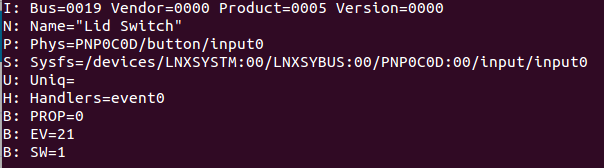
This script would display relevant information about all the input devices connected to your system. Here’s a sample output for the Lid switch :

Screenshot from 2017-04-18 13:04:47

Now what we want is the event handler number for the lid switch which we can see from the information as event0. And through this one can map all the events with their corresponding devices.

Alternative method:

An alternate approach to doing this is to look at /dev/input/by-id or /dev/input/by-path, they have symbolic links to /dev/input/event<x>. But the only downside to this is that it does not display all the possible devices. We will discuss how to read from both in this post.

Let’s read the data stream !

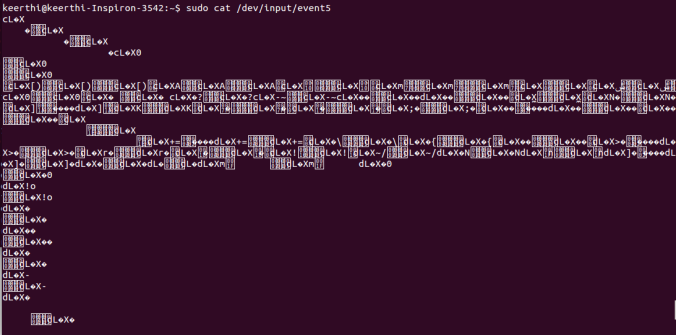
Say you want to read the mouse file, you only need to open the file using ‘cat’ and start moving the mouse.

(sudo) cat /dev/input/event5

Screenshot from 2017-04-18 22:57:25

You would observe that as you are moving the mouse a stream of data is being dumped onto your screen. This data although seems crazy contains the information for the movement of the mouse.

Interpreting the input stream

The format for the input stream is given in the Linux documentation as follows:

struct input_event {
	struct timeval time;
	unsigned short type;
	unsigned short code;
	unsigned int value;
};

struct timeval – 16

unsigned short – 2 ( x 2 )

unsigned int – 4

Total size = 24 bytes

What this means is the first 16 bytes of data contain the system time, which in our case is not essential. The rest 8 bytes of data contain the actual relevant values. This is the output format of all eventX files.

Reading the mouse

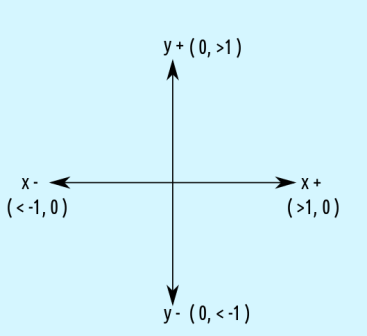
Reading the mouse is probably the simplest to start with because one does not need to go through the trouble of accessing any eventX files. The mouse file in the /dev/input directory outputs a stream of 3/4 bytes ( Button value, x , y ).

You would get a 4 byte stream if the mouse is configured with the scroll wheel. Unfortunately in my case, even though I use a mouse with a scroll wheel, it was configured as a PS2 mouse. ( If you are in a similar situation – read this)

mouse_usb

Map of the (x, y) data with the corresponding directions

My touchpad and wireless mouse do not have any special buttons and therefore when the button values are mapped with the corresponding clicks, I got the following :

Left_Button – 9

Right_Button – 10

Scroll_Button – 12

When I was going through this stackexchange, the code seemed to suggest different values for the each of these buttons.

Python Code for reading mouse:

import struct 
f = open( "/dev/input/mice", "rb" ); 
# Open the file in the read-binary mode
while 1:
  data = f.read(3)  # Reads the 3 bytes 
  print struct.unpack('3b',data)  #Unpacks the bytes to integers

Video Demo:

Reading the keyboard

Much like the mouse, one can opt for an easier way by just reading from the /dev/input/by-id or /dev/input/by-path, but for the love of it let’s try to play around with eventX files. Let’s go about this step by step.

  1.  Find the event handler number for the keyboard ( Mine was event5 )
  2.  Reading the byte data and converting it to the format specified in the Linux Documentation using the struct module in python
  3.  Extracting the relevant information from the converted data.


Python code for reading keyboard:

import struct 
f = open( "/dev/input/event4", "rb" ); # Open the file in the read-binary mode
while 1:
  data = f.read(24)
  print struct.unpack('4IHHI',data)
  ###### PRINT FORMAL = ( Time Stamp_INT , 0 , Time Stamp_DEC , 0 , 
  ######   type , code ( key pressed ) , value (press/release) )

Video Demo:

Other eventX ?

What should you do if you would like to read from another eventX file ? Well, from my experience I can share with you this. : The first 16 bytes in the file are always almost the time stamp and you can read only that data by:

struct.unpack('4I',data[:16])

The rest depends on the type of output which you can find out by using the evtest program.

sudo evtest /dev/input/eventX


** Now in theory, using uinput one can reverse engineer to emulate events. But we are still currently working on that. If you know anything about this, please ping us at 153armstrong@gmail.com


Switch on and off LED in Arduino using PySerial

When one starts off learning about Arduino, the Blind LED is one of the most popular programs to begin with. As you go up the learning ladder you find asking the question of ‘Hang on! What if I want to change the blink rate dynamically ?’ How would one go about doing that ?

Or breaking it further, how to turn on and off led with my discretion

Well, off the bat the first thing I could think of is using the Serial port to send the signal to switch on and off the LED. Ardruino has a default command that can be used for this purpose:

Serial.available()

” Get the number of bytes (characters) available for reading from the serial port. This is data that’s already arrived and stored in the serial receive buffer (which holds 64 bytes). available() inherits from the Stream utility class ”

Arduino code:

char c;
int led = 13;
boolean ledLightUp = false;

void setup(){
  Serial.begin(9600);
  pinMode(led,OUTPUT);
}

void loop()
{
// When a user sends serial data then read and execute the following
   if (Serial.available() > 0)
    {
      c = Serial.read(); 
      Serial.println(c);
      if(c == 'y')
      {
        ledLightUp = true;
        Serial.println("LED ON");
      }
      else if(c == 'n')
      {
        ledLightUp = false;
        Serial.println("LED OFF");
      }
    }
  if(ledLightUp){
    digitalWrite(led,HIGH);
  }  
  else{
    digitalWrite(led,LOW);
  }
}


Python code:

>> import serial,struct
>> ser = serial.Serial('your port name', 9600)
>> ser.write(struct.pack('b',enter here 'y' or 'n' with paranthesis))


You can watch the following video I made that demonstrates the essence of this post.


Getting Started with the USB to TTL converter

So, I purchased one of these USB to TTL converters, It seemed like a really powerful thing  to work with. But I did not have the slightest clue on how to work with them. So, I played around a bit and was able to send and receive serial data using the converter.  Here’s what I did:

Step-1 – Finding the Serial port

There are ways to check the active serial port on Ubuntu using the command line but probably the easiest way to check is by connecting the converter and opening up the Arduino IDE.

Now if you have nothing connected to it, the Serial Port section would be greyed out.
001

But once you insert your converter onto it, then you can immediately determine the serial port that converter has been connected to. In this case (see pic) it is ttyUSB1.
002

Step-2 – Writing the client program

Now that we have our serial ports ready, we need to write a simple program in Python that to read the data that will be sent to us.

client.py 

import serial
ser = serial.Serial('/dev/ttyUSB1', 9600)

while 1:
    serial_line = ser.readline()
    print serial_line

Now our client program will print every line of serial data that is receives.

Step-3 – The server

Now that the client server is up and running, its time to set up the server. I just opened the serial port for transmission and left it at that.

Screenshot from 2017-04-15 00:09:05

The command for the transmission of serial data is write i.e

ser.write(data) 

data - Data to send 

returns the number of bytes written

Step-4 Testing

1111

Finally, the TX and RX pins of the converter are shorted by using a jumper wire. That’s about it !

Whatever is sent through the TX port will now be received through the RX port. Everything has been setup. Now we can transmit and receive data !
Video Demo: